gadgetbinge

laptop is not turning on

Is your laptop completely dead and your laptop is not turning on Learn 6 proven methods to fix a laptop that won’t turn on – from power issues to hardware checks

Intro!

Whether you’re working, studying, or watching Netflix — a non-responsive laptop can ruin your day. Before rushing to a service center, try these practical steps to diagnose and fix the problem.

Common Reasons Why a Laptop Won’t Turn On

Before jumping to solutions, here are some possible causes:
•Battery Issues
•Faulty Charger or Power Cord
•Internal Hardware Failure
•Overheating
•Display Problems
•Motherboard or RAM Failure

Step-by-Step Fixes for a laptop is not turning on

 Step 1: Check the Power Supply

Check the Power Supply
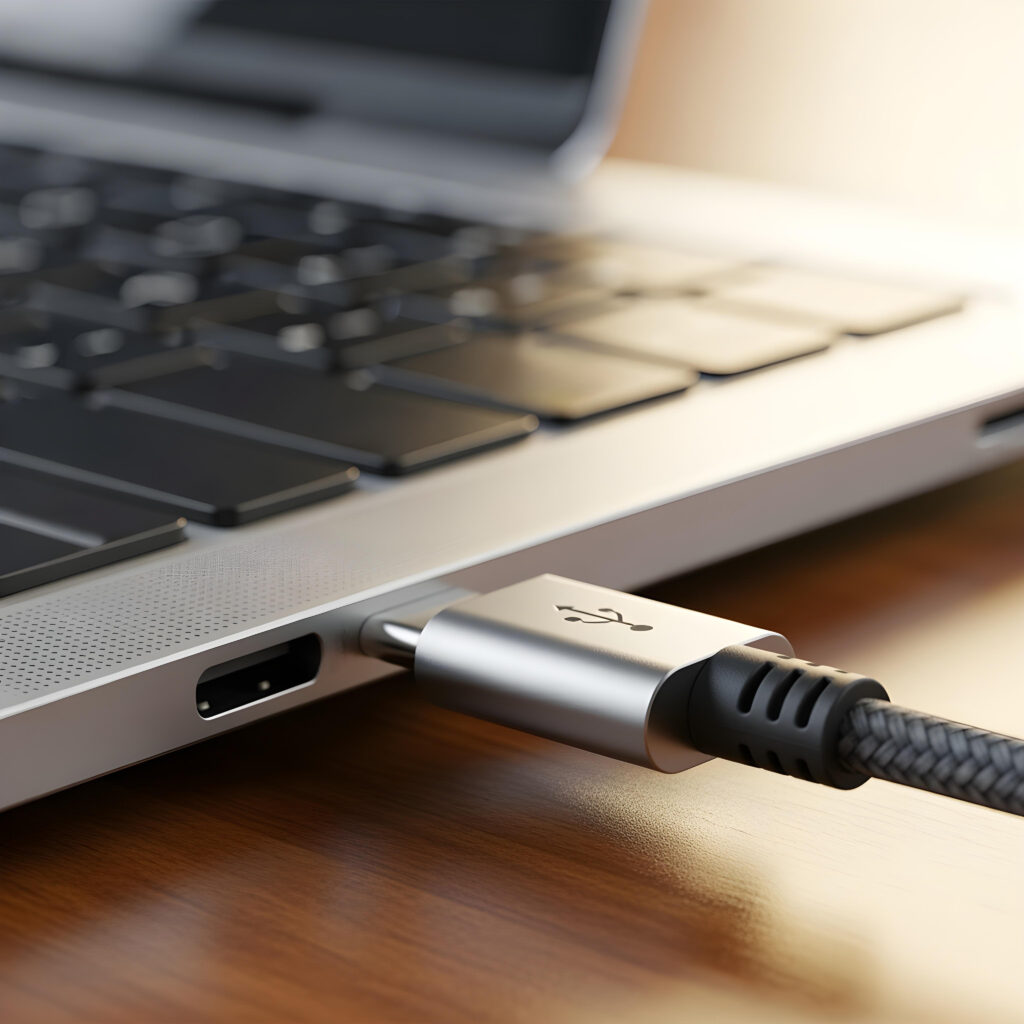
•Make sure the power cable is properly connected.
•Plug the charger directly into a wall socket (not an extension board).
•Try using another compatible charger if available.

Step 2: Perform a Hard Reset

Perform a Hard Reset
Sometimes, static electricity or minor software glitches stop the laptop from booting.
 
Follow these steps:
1.Disconnect all external devices (USB, HDMI, etc.).
2.Remove the battery (if removable).
3.Press and hold the power button for 15-20 seconds.
4.Reconnect the charger and try turning it on.
Step 3: Check for Overheating

Check overheating
If your laptop overheated during last use, it might go into thermal shutdown.
•Let it cool down for 30-60 minutes.
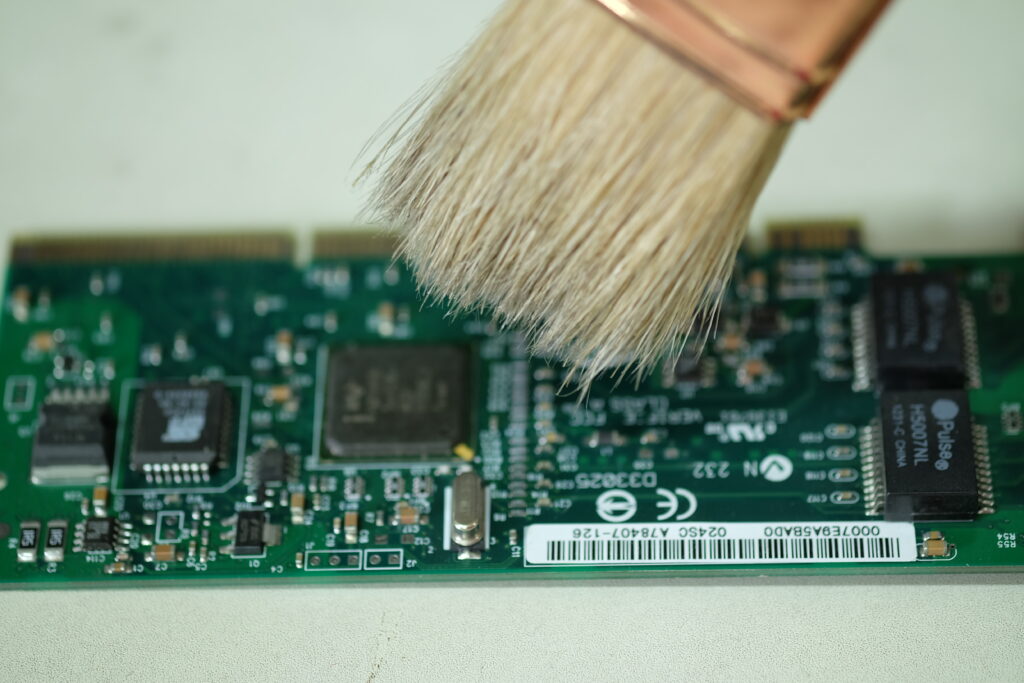
•Clean air vents or use a cooling pad.
•Try turning it on again after cooling.

Step 4: Screen Might Be the Problem

Screen Might Be the Problem
Your laptop could be on — but with a black screen.
•Check screen brightness.
•Connect it to an external monitor.
•If external display works, your laptop screen may be faulty.

Step 5: Remove and Reseat RAM

Remove and Reseat RAM
Faulty RAM can prevent the system from booting.
1.Open the back panel (only if you’re confident).
2.Remove the RAM sticks carefully.
3.Clean the contacts and reinsert them properly.
4.Power on the laptop again.

Step 6: Try Booting Into BIOS or Safe Mode

Try Booting Into BIOS or Safe Mode
•Press the power button and immediately tap F2, F10, F12, or ESC repeatedly (depends on brand).
•If BIOS opens, your hardware is fine, and the issue may be with software.
About!

A laptop is not turning on doesn’t always mean disaster. Most of the time, it’s a simple battery, charger, or display issue. By following these DIY steps, you might just bring your laptop back to life — no tools or technician needed!

Gadget Binge Site Logo

1 thought on “laptop is not turning on”

  1. Pingback: How to Fix Slow Boot Time in Windows 11

Leave a Comment

Your email address will not be published. Required fields are marked *

Scroll to Top